 ClipCast
YouTube Connect & Upload
OAuth sign-in and upload to YouTube.
Bring your own OAuth credentials (required)
ClipCast does not include a Google OAuth Client ID or Client Secret. Each user must create their own Desktop app OAuth client in Google Cloud Console: enable YouTube Data API v3, configure the OAuth consent screen, then open Settings → Integrations in ClipCast and paste the Client ID and Client secret before connecting YouTube. See the README on GitHub for the full checklist.
Connect your YouTube account to enable uploads and scheduling. The app uses Google OAuth (Desktop app flow): you sign in once in the browser and the connection is stored securely on your device.
Step 1 — Check connection status
In the top toolbar, the YouTube chip shows Connected (green) or Not connected (default).
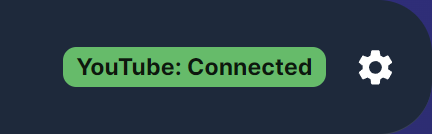
Screenshot 01 — Top toolbar: YouTube status chip (Connected / Not connected)
Step 2 — Connect or reconnect YouTube
Ensure Settings → Integrations has your Client ID and Client secret saved (Desktop client from Google Cloud). Click the YouTube chip, then choose Reconnect. The app opens your system browser to Google’s consent page; after you sign in and authorize, the app completes the connection. Use Reconnect if the connection has expired or was revoked. The chip menu also offers Test connection to verify that credentials load.
Legacy: You can migrate an old google_oauth_client.json via Developer mode → Open User Data; the recommended path is Integrations.
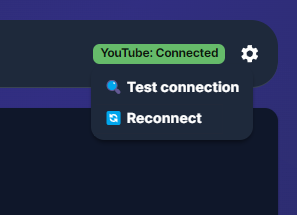
Screenshot 02 — YouTube chip menu: Reconnect
Step 3 — Upload to YouTube
Select one or more rows, click Publish, choose YouTube only, then Publish to YouTube. The app uses the YouTube metadata (title, description, tags) and the row’s visibility setting. If a future publish time is set, the video is scheduled; otherwise it uploads immediately. Rows already marked as posted for YouTube are skipped. You can also schedule a single video via the Schedule dialog for YouTube.
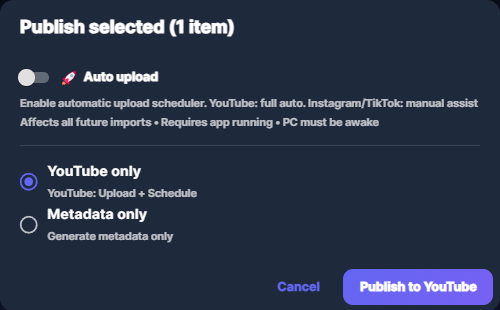
Screenshot 03 — Publish → YouTube only → Publish to YouTube
Common issues
- OAuth / invalid_client — Ensure: 1) OAuth client type is Desktop app (or Other), not Web application; 2) Client ID and Secret are copied correctly into Settings → Integrations; 3) YouTube Data API v3 is enabled in Google Cloud Console; 4) OAuth consent screen is configured and you are a test user if the app is in testing.
- Reconnect — If the connection drops or tokens are invalid, use Reconnect from the YouTube chip menu to go through the browser flow again. Test connection only checks that client credentials load; it does not re-authorize the account.