 ClipCast
Presets
Configure Custom AI presets for metadata generation.
Custom AI presets save AI instructions, description templates, and blocks (CTA, Links, Disclaimer) per platform so you can reuse them when generating metadata. Presets are managed in Settings → Custom AI. The active preset (or the custom settings you last applied) is used when you run Generate — both for the AI pipeline and for formatting the exported description files.
Step 1 — Open Custom AI
Click Settings in the top toolbar, then choose Custom AI. The dialog shows the preset dropdown, preset name field, and three tabs: AI Instructions, Description Template, and Blocks.
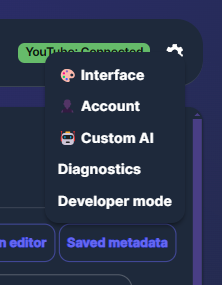
Screenshot 01 — Settings → Custom AI: preset list and editor
Step 2 — Preset list and actions
- Preset dropdown: select an existing preset or None. The active preset is marked (active).
- Preset name field: used when creating a new preset.
- Save as new: save the current draft as a new preset (name required). The new preset becomes active.
- Update preset: overwrite the currently selected preset with the current draft.
- Delete: remove the selected preset. If it was active, active is cleared.
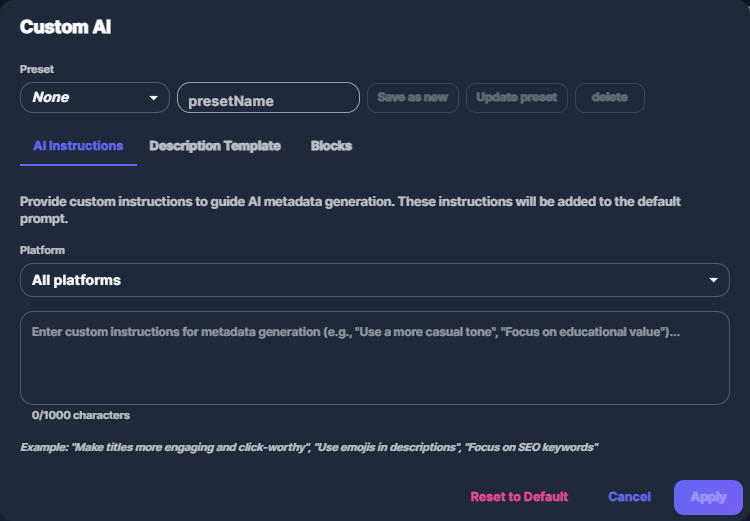
Screenshot 02 — Preset name, Save as new, Update, Delete
Step 3 — Edit instructions, template, and blocks
- AI Instructions tab: choose Platform (All / YouTube / Instagram / TikTok) and enter custom instructions for the AI (max 1000 characters per field). Used when the pipeline generates title, description, and hashtags.
- Description Template tab: choose Platform and enter a template with placeholders. The generated description is built from this template after generation.
- Blocks tab: choose Platform and set CTA, Links, and Disclaimer text. These are injected into the description template at
{CTA},{LINKS},{DISCLAIMER}.
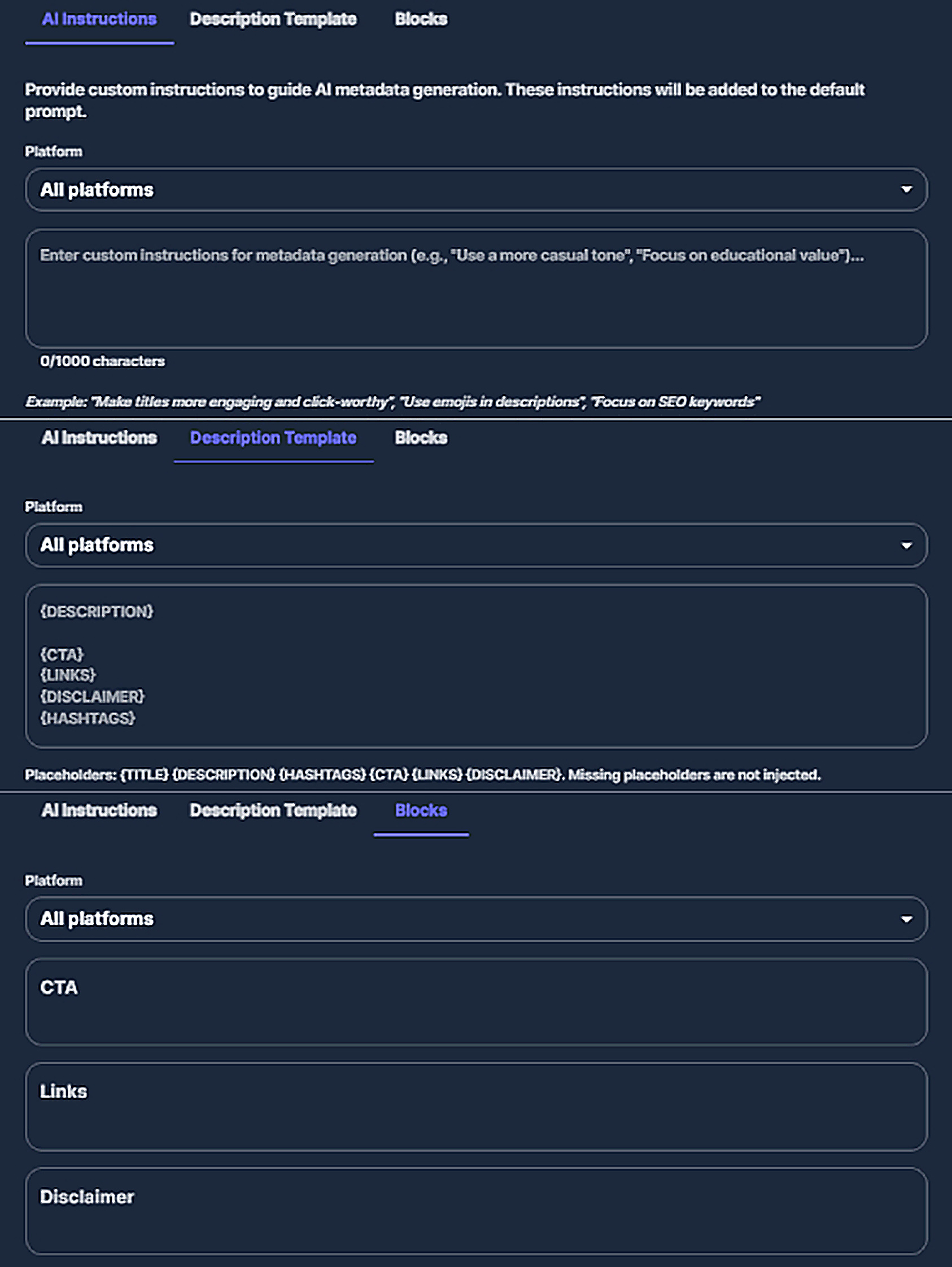
Screenshot 03 — Tabs: AI Instructions, Description Template, Blocks
Step 4 — Apply and use when generating
Click Apply to save the current draft to the app’s Custom AI settings. If the draft matches the selected preset, that preset is set as active; otherwise the active preset is cleared (custom settings still apply). The active preset (or last applied custom settings) is used when you run Generate from the Details panel or via Publish → Metadata only → Generate: the pipeline uses your instructions, then the description files are formatted with your template and blocks (CTA, Links, Disclaimer).
Placeholders in description template
Use {TITLE}, {DESCRIPTION}, {HASHTAGS}, {CTA}, {LINKS}, {DISCLAIMER}. They are replaced with the generated title/description/hashtags and with the CTA/Links/Disclaimer blocks from your preset. Unknown placeholders are removed.
Per-platform values
Instructions, description template, and blocks support All plus overrides for YouTube, Instagram, and TikTok. The app merges “All” with the platform-specific value when generating or formatting for each platform.
Common issues
- Preset not applied when generating — Select the preset in the dropdown, then click Apply so it becomes active (or use Save as new to create and activate it).
- Save as new requires a preset name; Update preset requires a preset to be selected.
- Reset to default clears instructions, template, and blocks in the dialog; it does not delete presets.