 ClipCast
Pipeline
Run transcript and metadata pipeline.
The pipeline is the processing flow that runs per video: it extracts audio, generates a transcript, creates AI metadata (title, description, hashtags) for YouTube, Instagram, and TikTok, and writes platform exports. The app invokes it when you click Generate (for the selected row) or Publish → Metadata only → Generate (for selected rows).
Who gets processed: Only rows that do not yet have metadata for the requested platforms are sent to the pipeline; the app checks outputs on disk first. If all selected rows already have metadata, you see a message and no pipeline runs. Rows already being processed are skipped (single-flight).
Optional platforms: You can generate metadata only for specific platforms (e.g. only YouTube). In the Details panel, if some platforms already have metadata, Generate can be run for the missing platform(s). The app passes the chosen platforms to the pipeline so only those are (re)generated and merged with existing metadata.
Outputs go to your Outputs folder. Logs stream in the Pipeline Log section in the Details panel and can be reviewed per item via Show technical log.
What the pipeline does per video
- Audio — Extracts audio. Skipped if it already exists and is non-empty.
- Transcript — Generates a transcript. Skipped if one already exists and is non-empty. If the transcript is too short, the pipeline stops with an error for that video.
- Metadata — Generates title, description, and hashtags using your Custom AI settings. If metadata already exists for the requested platform(s), it is reused or merged.
- Exports — Writes platform-specific files in your Outputs folder. Only the platforms that were requested (or all three if none specified) are written.
How to run the pipeline
Step 1 — Add rows first
Ensure the row(s) you want to process are in the Jobs table (see Add Files & Jobs). Add videos via Add (Files or Folder) if needed.

Screenshot 01 — Pipeline Log in Details panel
Step 2 — Start the pipeline
Select the row(s). Then either: in the Details panel click Generate in the Metadata section (for the selected row; you can choose to generate for all platforms or only for missing ones), or click Publish, choose Metadata only, then Generate (for all selected rows). Only rows that need metadata for the chosen platforms are sent; the rest are skipped and you see a message.
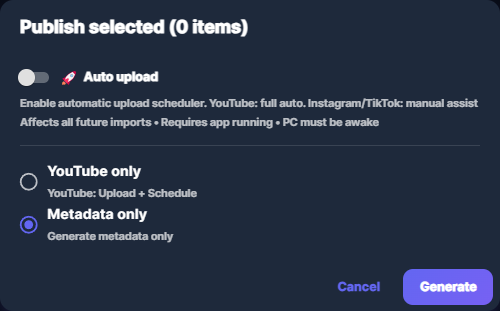
Screenshot 02 — Select row(s), then Generate in Details or Publish → Metadata only → Generate
Step 3 — Watch the log
The app processes the file and shows progress in the Pipeline Log section in the Details panel. Row status updates to Processing and then Done (or Error) as the pipeline finishes.
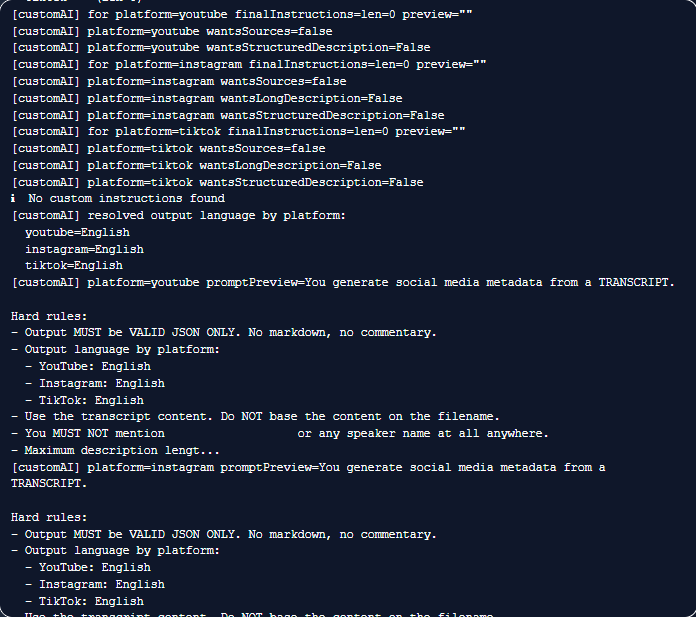
Screenshot 03 — Pipeline Log shows progress and output
Step 4 — Find outputs
When the run finishes, outputs are in your Outputs folder: Audio, Transcripts, Metadata, and Exports/YouTube, Exports/Instagram, Exports/TikTok. Run reports and logs are written to Reports. Use Open outputs or Open exports in the Details panel to open these folders.
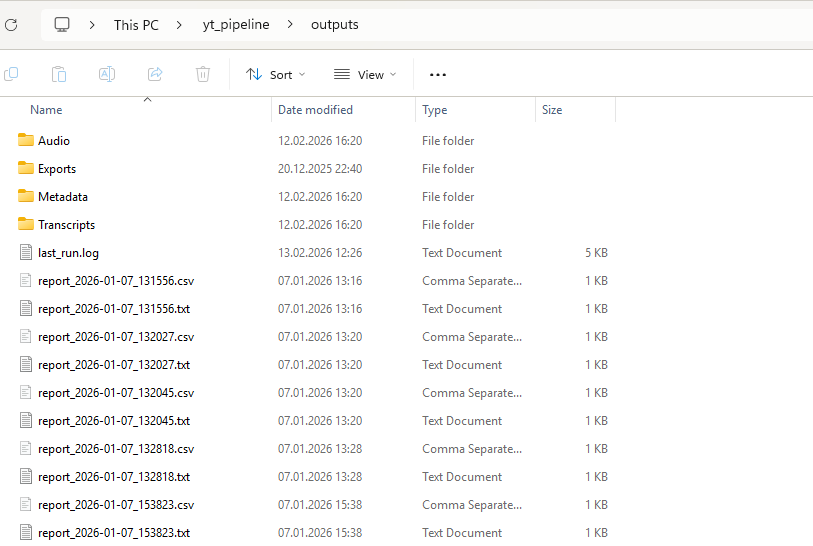
Screenshot 04 — Outputs folder
Common issues
- Pipeline fails or hangs — Open Show technical log for the row and retry once. Make sure the video file is accessible and you have free disk space. If the issue persists, share the technical log with support.
- Output location — Outputs are written to your Outputs folder (configurable in Settings → Developer mode).
- All selected already have metadata — The app only runs the pipeline for rows that lack metadata for the platforms you requested. To regenerate, delete metadata for that platform (or file) first, or use the per-platform Generate in Details for the missing platform.