 ClipCast
Manual Assist
Use Manual Assist for Instagram and TikTok at scheduled time.
Manual Assist helps you post to Instagram and TikTok at the scheduled time. The app does not post for you: it opens the platform upload page in your browser, copies title + description + hashtags to the clipboard, and reveals the video file in a folder so you can paste and upload yourself. YouTube uploads are fully automatic; Manual Assist applies only to Instagram and TikTok.
What the app does when you run “Assist”
For the selected job and platform (Instagram or TikTok), the app:
- Copies metadata to the clipboard — Reads the prepared export text (title, description, hashtags) and writes the combined text to the clipboard.
- Opens the upload page in your default browser — Instagram:
https://www.instagram.com/, TikTok:https://www.tiktok.com/upload. - Reveals the video file — Opens the file’s folder in Explorer (or Finder) so you can drag the file or pick it for upload.
You then paste the caption in the browser and attach the video, then publish on the platform yourself.
Where to run Manual Assist
- Assist Center — Lists jobs Due now (scheduled time within the next 10 minutes or already past) and Due soon (next 60 minutes). One main Assist Next button plus per-job, per-platform actions.
- Assist overlay — Minimal window with a floating Assist Next button and a badge showing how many manual-assist jobs are due (past their scheduled time). Useful as a second window or always-on-top.
- Details panel — When a row is selected, each platform has an Assist now (Platform) button and a dropdown with Assist now (all actions), Open upload page, Reveal file, and (for Instagram/TikTok) Mark as posted.
Assist Center behavior (exact logic)
- Assist Next (big button): Picks the next due job (when using the overlay backend: only jobs whose scheduled time has already passed; otherwise the first “Due now” job). Runs assist (clipboard + open browser + reveal file) and automatically marks that platform as posted for that job. You only need to paste and publish in the browser; no need to click “Mark as posted” for that run.
- Per-job buttons (for each job and platform):
- Assist IG / Assist TT — Runs assist only (clipboard + open browser + reveal file). Does not mark as done; use Done when you’ve published.
- Done — Marks that platform as posted/done and refreshes the list.
- Skip +30m — Postpones the job by 30 minutes (affects the whole job, not per platform).
So: use Assist Next for a quick “assist and mark done” flow; use the per-job Assist + Done when you want to run assist first and mark as posted only after you’ve actually published.
Details panel assist actions
- Assist now (Instagram) / Assist now (TikTok) — Triggers full assist (clipboard + open upload page + reveal file) and the app marks that platform as posted immediately (same as “Open now” flow).
- Assist now (all actions) (in dropdown) — Same as the main Assist button for the selected platform.
- Open upload page (Platform) — Only opens the browser to the platform upload URL; no clipboard or file reveal.
- Reveal file in folder — Only opens the file’s folder in the system file manager.
- Mark as posted (Platform) — Only marks that platform as posted/done (use after you’ve published manually).
How to use Manual Assist (steps)
- Schedule for Instagram or TikTok — In the Jobs table, click the Instagram or TikTok cell for the row to open the schedule dialog. Set Schedule for later with date and time, or Open now. Confirm so the job is created for that platform. Only jobs with Instagram or TikTok as target and not yet marked done appear in Assist Center and in the overlay count.
- Open Assist Center or overlay — Use Assist Center for the full list (Due now / Due soon) and Assist Next or per-job buttons; or Assist overlay for the floating Assist Next button.
- Run assist — Click Assist Next (assist + auto mark as posted) or, for a specific job, Assist IG / Assist TT (assist only), then Done after you publish. Alternatively, select the row and use Assist now (Instagram/TikTok) or the dropdown actions from the Details panel.
- Paste and publish — In the browser, paste the caption and attach the video, then publish on the platform. If you used per-job Assist (not Assist Next), click Done in the app when finished.
- Optional: Skip — To postpone a job, use Skip +30m in Assist Center; the job’s scheduled time is moved 30 minutes later.
Step 1 — Schedule for Instagram or TikTok
In the Jobs table, click the Instagram or TikTok cell for the row. In the schedule dialog, choose Schedule for later and set date and time, or Open now, then confirm. That creates the scheduled job for that platform and makes it a target for Manual Assist.
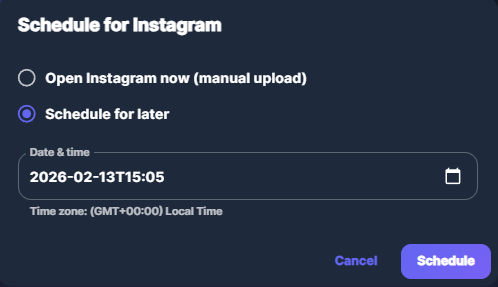
Screenshot 01 — Schedule for Instagram or TikTok
Step 2 — Open the assist view
Open Assist Center to see Due now (within 10 min or past) and Due soon (next 60 min) and the Assist Next button. Or use Assist overlay for a floating Assist Next button with a due-count badge.
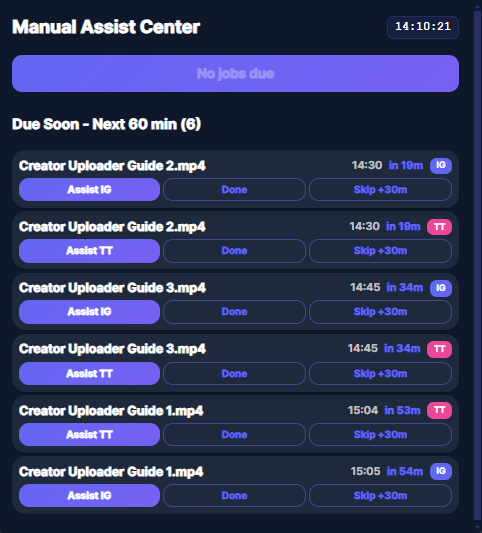
Screenshot 02 — Assist Center view
Step 3 — Assist Next or per-job Assist
Assist Next runs assist and marks the job as posted. Per-job Assist IG/TT runs assist only; click Done after you publish. Skip +30m postpones the job by 30 minutes.
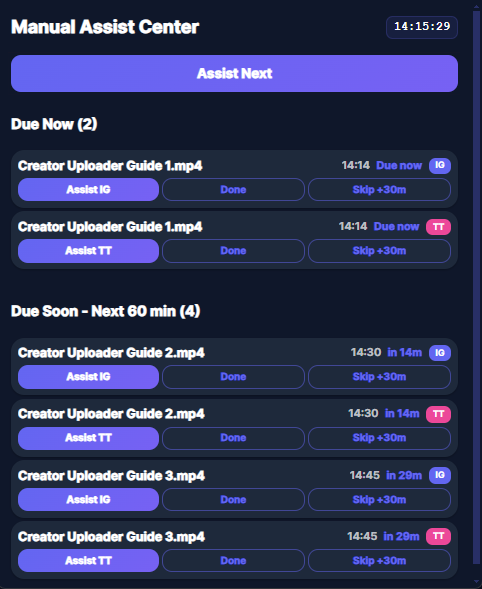
Screenshot 03 — Assist Next vs per-job Assist / Done
Step 4 — Paste and publish in the browser
In the browser, paste the caption and attach the video. Use Open upload page or Reveal file from the Details panel dropdown if you need to reopen the page or the file’s folder.
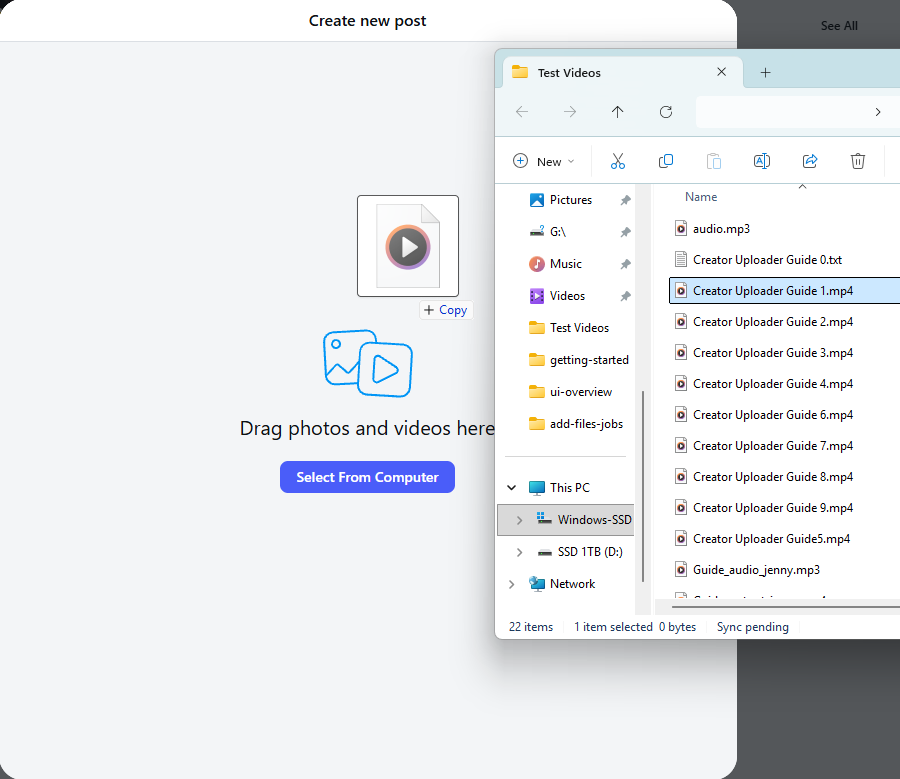
Screenshot 04 — Paste caption and attach file
Step 5 — Mark as posted (if you used per-job Assist)
If you used Assist IG/TT (not Assist Next), click Done in Assist Center or Mark as posted (Platform) in the Details panel after you publish on the platform.
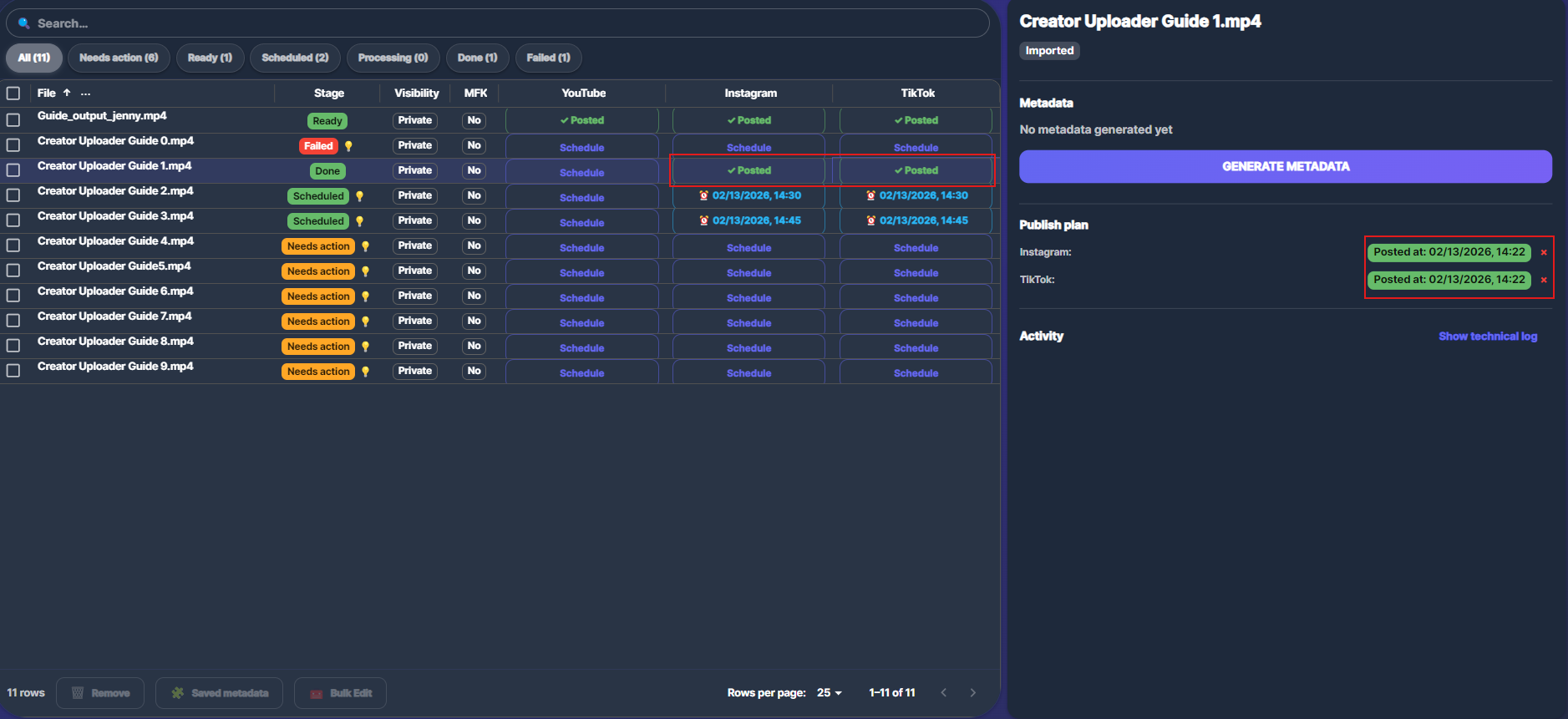
Screenshot 05 — Mark as posted when using per-job Assist
Common points
- Not automation — The app never posts for you. It only opens the upload page, copies caption/hashtags, and reveals the file.
- Clipboard — Assist overwrites the clipboard with the combined title + description + hashtags. Use it right away; a toast confirms when the clipboard is updated.
- Assist Next vs per-job Assist — Assist Next = assist + mark as posted. Per-job Assist = assist only; you must click Done or Mark as posted yourself.
- Silent mode — If Silent mode is ON in schedule/auto-upload settings, the app does not auto-open the browser when a job is due. Use Assist Center or Assist overlay and click Assist Next or per-job Assist when you’re ready.