 ClipCast
Troubleshooting
Fix common issues and errors.
For the complete guide with search and screenshots for every feature, use getclipcast.app/guide.
If something is not working as expected, start with the symptom you see below.
Generate Metadata does not start or fails
Try these steps:
- Make sure the video file still exists in the same location.
- Open the row details and check the technical log for the latest error.
- Try again with one short video file to confirm whether the issue affects all files or only one.
- If the problem continues, restart ClipCast and try again.
If ClipCast still cannot generate metadata, send the technical log to support.
ClipCast uses CPU even though your laptop has an NVIDIA GPU
Important: Owning a laptop or desktop with an NVIDIA GPU does not guarantee CUDA acceleration. ClipCast bundles DLLs that target a CUDA 12.x–compatible runtime. If Windows NVIDIA drivers are too old, incomplete, or blocked (corporate PC, dual-GPU quirks), the hardware may still appear in detection while CUDA fails — then ClipCast correctly falls back to CPU so you can keep working.
ClipCast may detect your NVIDIA GPU but still fall back to CPU if no usable CUDA device is exposed by the current driver or runtime.
Try this:
- Install the latest NVIDIA Game Ready / Studio (or OEM) drivers from NVIDIA or your laptop vendor — driver age matters more than “having a discrete GPU.”
- Reboot Windows after updating drivers.
- Open Developer Mode.
- Click Refresh in the Compute backend section.
- Check:
- Selected device
- CUDA smoke test
- Fallback reason
- Run
nvidia-smiin Windows Command Prompt and confirm GPU and driver versions look healthy. - Retry ClipCast.
If GPU mode is not available, ClipCast will fall back to CPU automatically so you can still continue working.
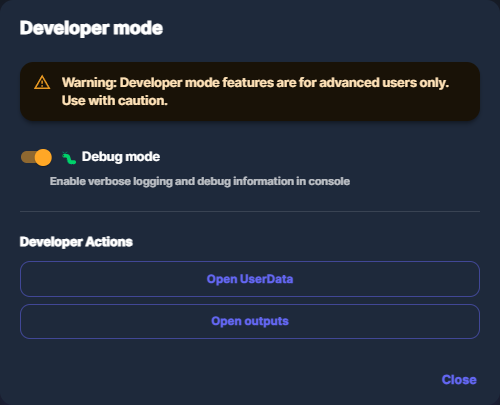
Settings → Developer mode: use Refresh and read CUDA smoke test / Fallback reason after updating drivers.
For more context (screenshots and related topics), browse the full guide index — search CUDA, Developer mode, or GPU.
YouTube connection fails
Try these steps:
- Open Settings and reconnect your YouTube account.
- Make sure you are signing in with the correct Google account.
- Close ClipCast completely, open it again, and retry the connection.
- If the connection still fails, remove the saved connection and connect again from scratch.
If the issue continues, contact support and include the technical log.
A file is missing or a row does not work anymore
This usually means the original file was moved, renamed, deleted, or is on a disconnected drive.
Try this:
- Check that the original file still exists.
- If the file was moved, add it again to ClipCast.
- If an external drive was used, reconnect the drive and retry.
Upload or publish action does not work
Try these checks:
- Make sure you are signed in to the correct platform account.
- Confirm your internet connection is stable.
- Check whether the selected row has all required metadata and media ready.
- If you use Manual Assist, open the Assist Center and retry from there.
If it still fails, open the technical log and send it to support.
Manual Assist Center does not show the expected item
Try this:
- Make sure the row really has a scheduled assist or publish action.
- Open the Manual Assist Center again from the tray.
- Wait a few seconds for the list to refresh.
- If needed, close and reopen the app once.
If the item still does not appear, send the technical log to support.
ClipCast starts but something feels stuck or out of date
Try this:
- Close and reopen the app.
- Check whether an app update is available.
- Retry the action with one test file first.
- Open the technical log to see the latest error or warning.
ClipCast does not start
Try these steps:
- Restart your PC.
- Open ClipCast again.
- If Windows blocked part of the install, reinstall the latest version.
- If it still does not open, contact support and include any error message you see.
Useful tools inside ClipCast
Technical log
Use the technical log when a row fails or a step stops unexpectedly.
This is the best thing to attach when contacting support.
Developer Mode
Developer Mode helps you check:
- which compute mode is active
- whether ClipCast is using CPU or CUDA
- whether a fallback reason was detected
You do not need Developer Mode for normal daily use, but it is useful for troubleshooting.
Still stuck?
If the problem continues after the steps above, contact support and include:
- what you were trying to do
- what happened instead
- a screenshot, if possible
- the technical log